Creating YouTube videos with Google Veo 3 means turning simple text ideas into cinematic, high-quality video clips powered by advanced AI. Veo 3 is Google’s most capable text-to-video model, designed to generate realistic motion, consistent characters, and film-like visuals from prompts.
For YouTube creators, this unlocks faster production, lower costs, and creative freedom without traditional filming. Whether you run a faceless channel, explainer content, or cinematic shorts, Veo 3 can form the visual backbone of your workflow.
In this guide, you’ll learn exactly how to create YouTube videos using Google Veo 3, from concept to upload, with best practices for quality, storytelling, and long-term growth.
What Is Google Veo 3 and How It Works for YouTube Creators?
Google Veo 3 is a next-generation text-to-video AI developed by Google DeepMind. It generates high-resolution videos with realistic physics, lighting, and camera movement—making it ideal for YouTube storytelling.
Unlike basic AI video tools, Veo 3 understands:
- Cinematic language (camera angles, depth, lighting)
- Narrative continuity across scenes
- Detailed prompts similar to screenplay directions
This makes Veo 3 especially powerful for YouTube niches like education, storytelling, tech explainers, documentaries, and Shorts.
How Google Veo 3 Fits Into the YouTube Ecosystem?
YouTube rewards watch time, engagement, and originality. Veo 3 helps creators focus on storytelling while reducing production friction. When paired with editing and voice tools, it becomes a scalable content engine.
Key benefits for YouTube creators:
- Faster content production cycles
- No need for cameras or filming locations
- Consistent visual style across videos
- Easy experimentation with formats (Shorts, long-form, trailers)
Step 1: Plan Your YouTube Video Before Using Veo 3
Strong AI videos still start with human planning. Before generating anything, clarify the video’s purpose and structure.
Define Your Video Concept
Ask yourself:
- Is this an explainer, story, or cinematic montage?
- Long-form (8–12 minutes) or Shorts (30–60 seconds)?
- Educational, emotional, or entertaining?
Create a Simple Script or Outline
Break the video into scenes:
- Hook (first 5–10 seconds)
- Core message or story beats
- Visual transitions
- Ending or CTA
This outline will directly inform your Veo 3 prompts.
Step 2: Write Effective Prompts for Google Veo 3
Prompt quality determines output quality. Veo 3 works best with descriptive, cinematic prompts.
Example Prompt for YouTube
“A cinematic wide shot of a futuristic city at sunrise, soft golden light reflecting off glass buildings, slow drone camera movement, ultra-realistic, 4K, dramatic atmosphere.”
Prompt Structure That Works Best
- Scene subject (who or what)
- Environment (location, time, weather)
- Camera movement (pan, zoom, drone, static)
- Lighting and mood
- Style (cinematic, documentary, realistic)
Use one prompt per scene for better control.
Step 3: Generate Video Scenes with Veo 3
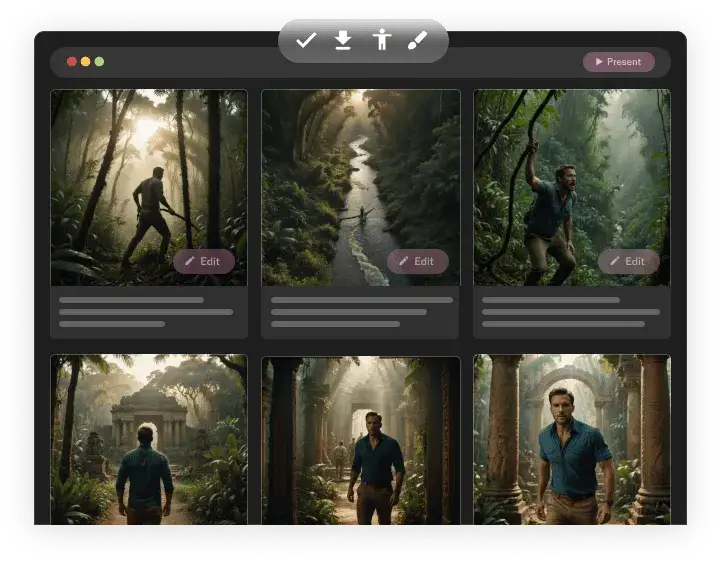
Inside Google’s AI ecosystem (currently via experimental or integrated tools), you generate short clips—usually 5–10 seconds each.
Best practices:
- Generate multiple variations per scene
- Keep characters visually consistent
- Save the highest-quality outputs
You’ll later stitch these clips together into a full YouTube video.
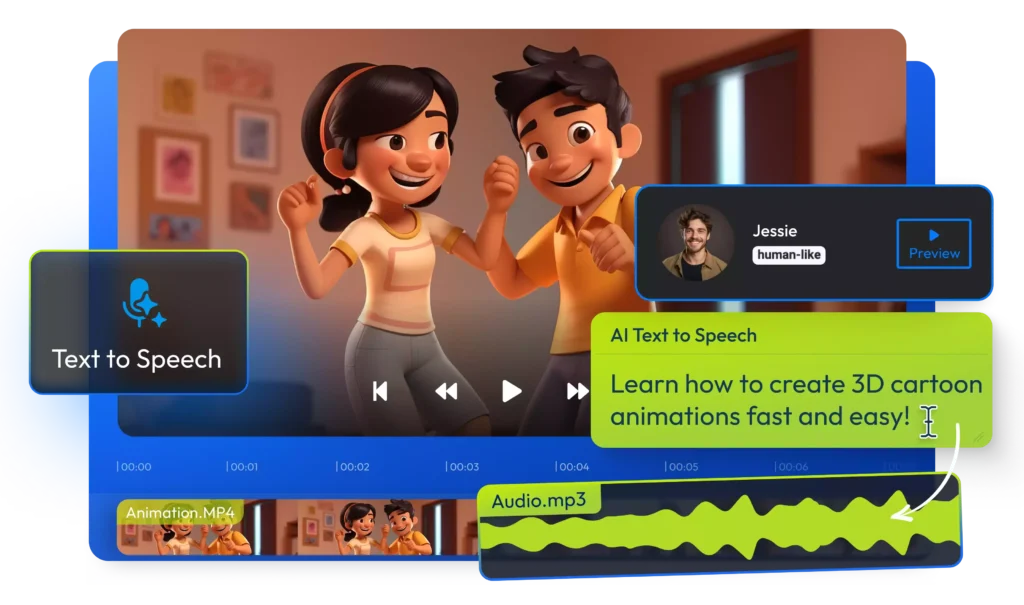
Step 4: Add Voiceovers, Music, and Sound Design
Veo 3 focuses on visuals, so audio comes next.
Voiceover Options
- Record your own narration
- Use AI voice tools (natural, human-like tones)
- Match pacing to scene length
Background Music
Choose music that:
- Enhances emotion
- Doesn’t overpower narration
- Fits YouTube copyright rules
Sound design dramatically improves retention and professionalism.
Step 5: Edit Your Veo 3 Clips for YouTube
Editing turns raw AI clips into a cohesive story.
Recommended editing steps:
- Arrange scenes to match script
- Add smooth transitions
- Insert text overlays or captions
- Color-correct for consistency
Most creators use standard editors like Premiere Pro, Final Cut, or CapCut Pro—Veo 3 outputs fit seamlessly into these tools.
Step 6: Optimize the Video for YouTube SEO
AI visuals don’t replace YouTube optimization. This step determines discoverability.
YouTube SEO Checklist
- Clear, curiosity-driven title
- Keyword-rich description (natural language)
- Relevant tags and hashtags
- High-contrast custom thumbnail
- Chapters for long-form videos
Veo 3 helps create stunning visuals, but SEO helps the algorithm understand your content.
Example YouTube Video Workflow Using Google Veo 3
| Stage | Tool / Action | Outcome |
|---|---|---|
| Ideation | Script + Outline | Clear story |
| Visuals | Google Veo 3 | Cinematic clips |
| Audio | Voice + Music | Emotional depth |
| Editing | Video editor | Polished video |
| Upload | YouTube SEO | Discoverability |
Best YouTube Niches for Google Veo 3 Videos
Veo 3 performs exceptionally well in:
- Educational explainers
- Tech and AI channels
- Storytelling and short films
- Motivation and philosophy
- Faceless documentary channels
These niches value visuals and narrative—exactly where Veo 3 shines.
Common Mistakes to Avoid When Using Veo 3 for YouTube
Avoid these pitfalls:
- Overloading prompts with vague terms
- Relying only on visuals without storytelling
- Ignoring YouTube pacing and hooks
- Uploading without SEO optimization
AI enhances creativity—it doesn’t replace strategy.
Is Google Veo 3 Safe and Allowed for YouTube Monetization?
Yes—AI-generated videos are allowed on YouTube as long as:
- Content is original and not misleading
- You disclose AI use when required
- Videos provide real value to viewers
Pair Veo 3 visuals with original scripts, commentary, or analysis for long-term monetization safety.
The Future of YouTube Creation with Google Veo 3
Google Veo 3 signals a shift toward idea-first content creation. As AI video quality improves, creators who master storytelling, ethics, and audience trust will win.
The real advantage isn’t automation—it’s creative leverage.
Final Thoughts: Should You Use Google Veo 3 for YouTube?
If you want cinematic visuals, faster workflows, and scalable content, Google Veo 3 is a game-changer. When combined with strong scripts, thoughtful editing, YouTube SEO, and platforms like Isloo Tools, it enables creators to compete with studio-level production—without studio-level budgets.
Used responsibly, Veo 3 isn’t just a tool. It’s a creative partner.
FAQs: How to Create YouTube Videos Using Google Veo 3?
What can you do with Google Veo 3?
Google Veo 3 allows you to generate cinematic-quality videos directly from text prompts. You can create realistic scenes, smooth camera movements, atmospheric lighting, and visually consistent shots that feel closer to film than traditional AI animations. For creators, this means producing YouTube videos, visual explainers, short films, or conceptual scenes without filming equipment. Veo 3 is especially useful for storytelling, education, and faceless content where visuals carry the message.
Will Veo 3 replace filmmakers?
Veo 3 will not replace filmmakers, but it will reshape how filmmaking and video creation are done. Filmmaking relies on human judgment—storytelling, emotion, cultural context, and creative intent—which AI cannot fully replicate. Veo 3 handles visual generation and execution, while humans remain responsible for ideas, narratives, and meaning. In practice, it acts as a creative accelerator, not a creative replacement.
What can you do with Google Veo 3 for content creation?
For content creation, Google Veo 3 can be used to visualize ideas quickly, experiment with scenes, and produce professional-looking video assets at scale. It helps creators focus less on production logistics and more on storytelling and strategy. When combined with scripting, voiceover, and editing, Veo 3 becomes a powerful tool for building consistent, high-quality video content without traditional filming workflows.
Can you monetize Veo 3 videos?
Yes, Veo 3 videos can be monetized as long as they meet platform guidelines and provide original value. Monetization depends on how the video is used, not the fact that it was generated by AI. Videos that include original narration, educational insight, storytelling, or commentary are generally eligible for ads and other revenue models. The key factor is authenticity and usefulness to the audience.
Can you upload Veo 3 videos to YouTube?
Yes, Veo 3 videos can be uploaded to YouTube without restriction, provided they follow YouTube’s content and monetization policies. YouTube allows AI-generated content as long as it is original, not misleading, and compliant with community guidelines. To perform well long term, Veo 3 visuals should be paired with thoughtful editing, clear messaging, and human-led storytelling.

- Semrush vs Ahrefs: Which SEO Tool Is Better in 2026? - January 21, 2026
- What Is Semrush Pro? Features, Pricing & Use Cases Explained - January 20, 2026
- Detailed Comparison: Google Veo 3 Fast vs Standard – Which Should You Use? - January 19, 2026